

- Tutorials
- Import a statement
Import a statement
Drop a statement file. LedgerDock reads it and checks its own math.
56 seconds, with voice and captions. The company on screen is a demo with invented books.
The steps
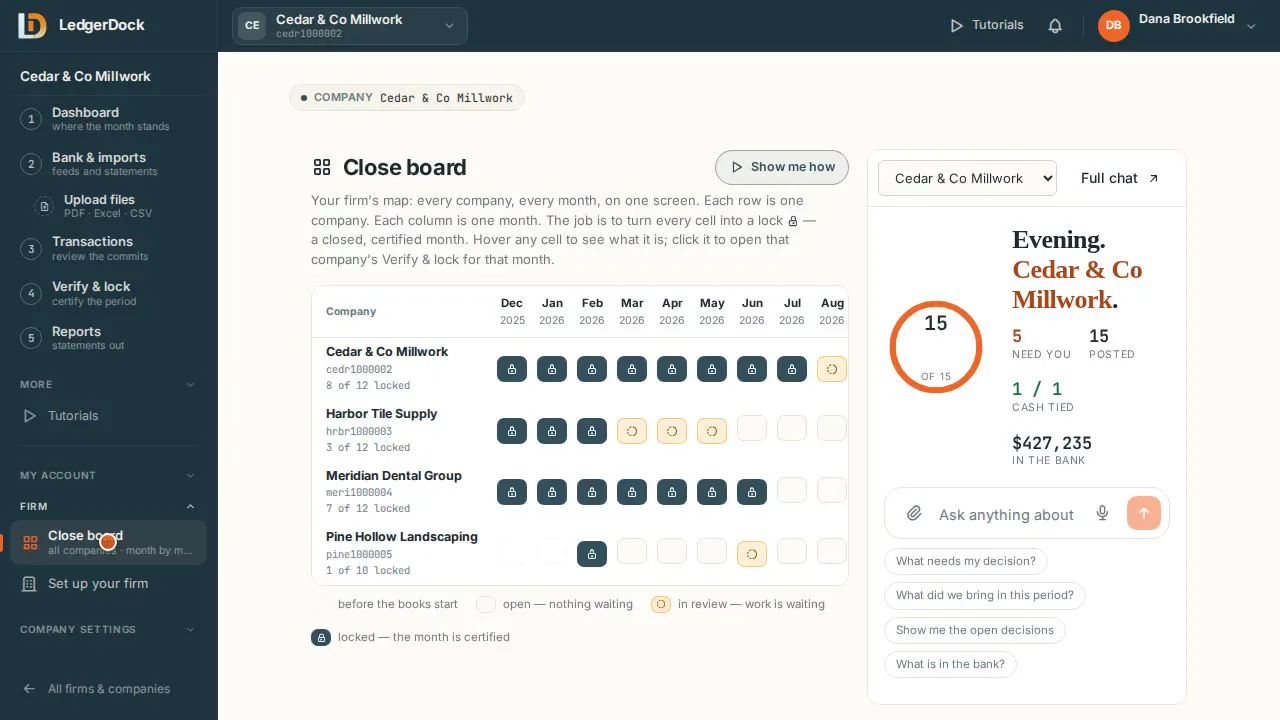
- Click “Upload files” in the menu. It opens the Extract box on 3 — Transactions.
- Drop the PDF statements in the box, or click to choose them. Files dropped together stay together as one drop.
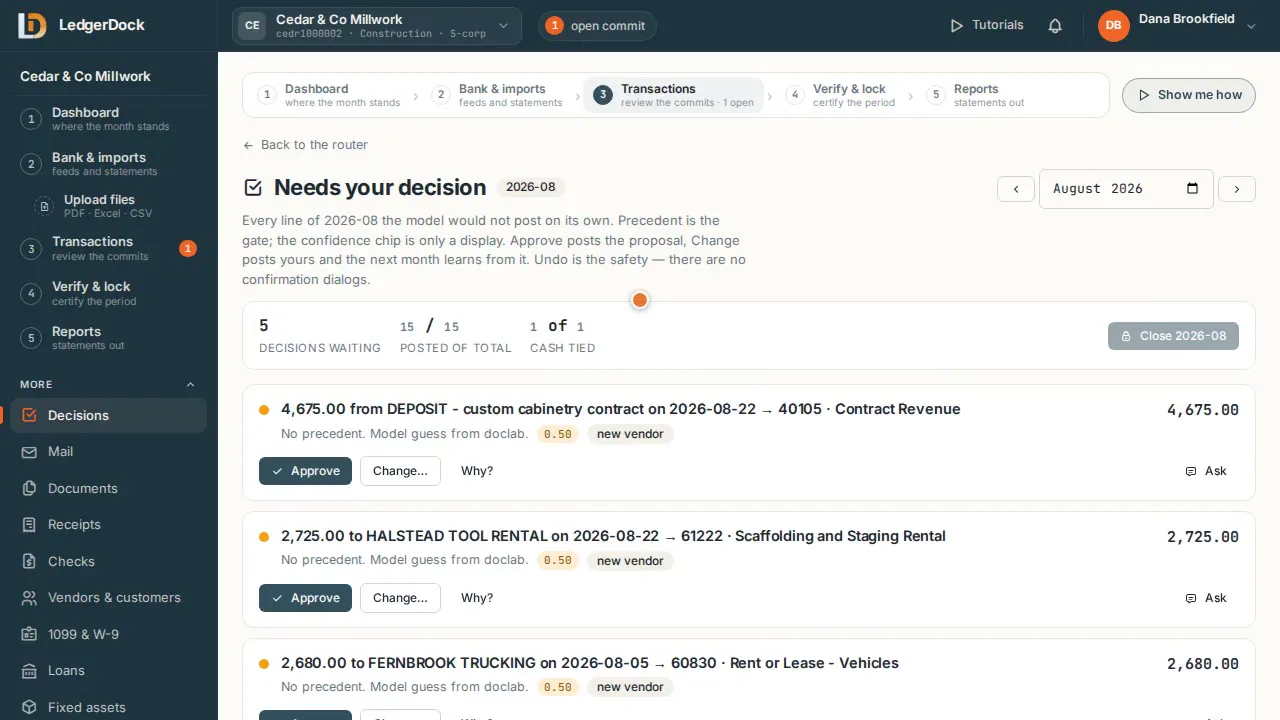
- LedgerDock reads every line, then adds them up. The total must match the total printed on the statement — to the penny.
- When it ties, press “Commit” on the file — or make one commit from several files that belong together.
- An Excel or CSV file gets a “Review” button: you confirm its columns once, by hand.
- If the totals do not match, nothing posts. You see why — LedgerDock never guesses a number.
What the video says
Every word, written out
You can also bring work in as files. A bank statement as a PDF, or a spreadsheet as Excel or CSV.
Click Upload files in the menu. It opens the Extract box on Transactions.
Drop the statements in the box, or click to choose them. Files you drop together stay together, as one drop.
LedgerDock reads every line, then checks its own math. The lines are added up, and the total must match the total printed on the statement. To the penny.
When it ties, press Commit on the file. Or make one commit from several files that belong together.
An Excel or CSV file gets a Review button. You confirm its columns once, by hand.
If the totals do not match, nothing posts. You see exactly why. LedgerDock never guesses a number.
Try it on your own books. One set of books is free.